At the bottom of each page is a footer (using smaller point sizes) that also contains links to main sections of the website. The footer area is not provided as the navigation method for the website even though it can be used for that purpose if you so choose. The main method of navigation is to click on menus or links displayed as part of the regular text. To go back, you can always click on the Back arrow in your browser or the title of the page (on our site).
The size of text that you see depends on the size of your monitor and the resolution that the monitor is set at. If the resolution is set too high for the size of the monitor, text may appear harder to read.
Our web pages are designed using the "default" size of text, the same as over 90% of web pages worldwide. So if the print of our website looks too small to you, there are four reasons why. A discussion of the four reasons are listed in the order you should use to check your system out. The first reason shown may be all you need to change.
Here are the four reasons:
As you get older and your eyes weaken; you may wish to change the default viewing size in your browser. Surprisingly, a lot of people are not aware of this feature, nor take advantage of it. The different browsers think of changing the size to mean different things. Some think of it as changing the text size but leaving the page layout the same; others think of it as changing the entire page layout. Each method has its pros and cons. Internet Explorer changes the entire page layout, not just the text. Most other browsers change the text size without altering the layout. For some web page designs, the text may become too large for the area the text is intended to be displayed. On the other hand, a page that is enlarged entirely may become too large to be viewed on the monitor. It is always good to have both types of browsers handy so that when one is making the enlarged version worse, you can switch to the other browser.
Internet Explorer:
To change the default viewing size in Internet Explorer, choose the View menu, and scroll down to the Text Size choice.
Notice the choices range from Largest to Smallest. You should try these out and choose the size that you are most comfortable with.
If your browser has the Text Size button displayed, you can click the button to select the choices very easily:

Other (IE based) browsers such as Avant Browser, and MaxThon have similar methods of changing the typeface size.
Tip: If you have the Microsoft Intellimouse or compatible "wheel" mouse, you can change the settings very easily by pressing the Ctrl key and rolling the wheel on the mouse. For Internet Explorer versions prior to version 7, rolling down increases the text size. Starting with version 7, rolling up increases the size. If the page has lots of text, it may take a moment to update the display (don't roll back and forth unless the page updates instantly, otherwise the computer may hang).
Netscape/Mozilla has a similar feature to change the default displayed text size. In Netscape version 4.7, the choice is View, then Increase Font, or Decrease Font. You can also use the Ctrl key and the right bracket (]) key to increase, and the left bracket([) to decrease.
In Netscape versions 6 and 7, the choice changed to View, then Text Zoom. The current setting will be shown (in percent). You can specify the sizes to use in percent or you may "increase" or "decrease" your current settings. Ctrl and the plus(+) and minus(-) keys will allow you to increase and decrease the text size.Tip: Mozilla allows you to set the option to allow text size changes to occur when the mouse wheel is rolled while the Ctrl key is depressed.
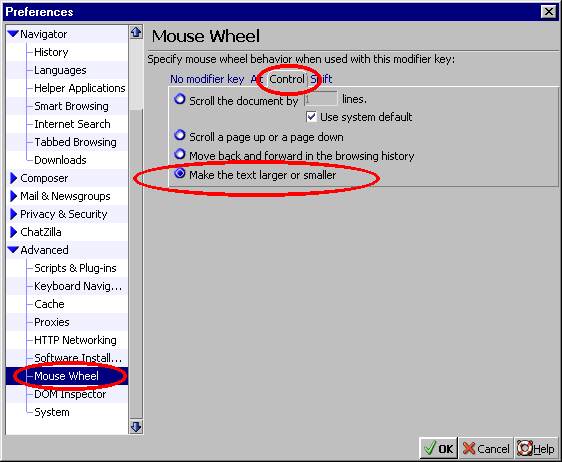
If you have the Microsoft Intellimouse or compatible "wheel" mouse, you can change the settings very easily by pressing the Ctrl key and rolling the wheel on the mouse. While pressing Ctrl, roll the mouse wheel down to increase the text size. If the page has lots of text, it may take a moment to update the display (don't roll back and forth unless the page updates instantly, otherwise the computer may hang).To make sure this will work in Mozilla, you have to make sure the settings are correct, which is not the default settings as the browser is shipped; to do this, you need to edit your preferences. Select Edit | Preferences, then select Advanced, then Mouse Wheel (as shown below). Click on the Ctrl tab, then make sure that the choice "Make the text larger or smaller" is selected.
After the adjustment is made, while pressing Ctrl, roll the mouse wheel down to increase the text size.
Firefox has a similar feature to change the default displayed text size.
Firefox changed the menu items starting with version 3.0. Prior to 3.0, the View Menu had a Text Size choice, which then allowed the user to Increase, Decrease, or set the text size to Normal. Starting with version 3.0, the View menu item changed to Zoom, which then allowed the user to Zoom in, Zoom Out, or Reset. The main difference is that versions prior to 3.0, the menu choices affected text but not the layout of the page, which is what you wanted in most cases to read the text easier. Starting with version 3.0, the View | Zoom menu choice refers to the entire page. To be backwards compatible, versions 3.0 added a "Zoom Text Only" option.
The text size can be increased using the Ctrl key and the plus key (+). Ctrl and minus (-) decreases the text size.
Tip: Firefox (some combos of Firefox and OS versions) allows you to change text size when the mouse wheel is rolled while the Ctrl key is depressed.
If you have the Microsoft Intellimouse or compatible "wheel" mouse, you can change the settings very easily by pressing the Ctrl key and rolling the wheel on the mouse. For Windows 7 Beta, Firefox stopped allowing the user to control text size using the mouse wheel for version 2.0.0.20 on up through Firefox 3.5. When Windows 7 RC 1 came out, the Ctrl+Mouse Wheel started working on these versions again. Strangely, the Firefox documentation no longer mentions that the text size can be changed using the Control key+Mouse Wheel combo.
For versions prior to Firefox 3 early beta, while pressing Ctrl, roll the mouse wheel down to increase the text size; for version 3 early beta, roll the mouse wheel up to increase the size. If the page has lots of text, it may take a moment to update the display (don't roll back and forth unless the page updates instantly, otherwise the computer may hang).
Opera has a similar feature to change the text size displayed. Versions prior to 10 Alpha changes the size of the entire page, not just the text size, so the page may get larger than your display width causing you to scroll left and right to read text, or the page may be formatted with sections of text below other sections. Starting with 10 Alpha, the text size increases but the layout remains the same.
To change, use the View, then Zoom. Opera uses a few preset sizes such as 120%, 150%, and 200% (and others) that can be chosen in the same menu. Opera also allows changing the size by using the scroll wheel of the mouse, except Opera increases the size when the mouse is rolled up. The idea being Up increases and Down decreases. This make sense; too bad Internet Explorer didn't start out this way, which in turn influenced the other browsers to do the same as Internet Explorer. Now, looks like they all are adapting roll up to increase.
Konqueror has a similar feature to change the text size displayed. From the Konqueror View menu, you can Enlarge Font or Shrink Font. Konqueror changes the size of the text (font), not the entire size of the page. The menu choice is View, then Enlarge Font. Konqueror also allows changing the size by using the scroll wheel of the mouse, and Konqueror increases the size of the font when the mouse is rolled up. The idea being Up increases text size and Down decreases text size.
Other browsers such as Safari, and Chrome also have similar methods of changing the typeface size.
More notes on using Ctrl key + the Mouse Wheel to change Text Size
Common screen size resolutions are:
| 800x600 pixels |
| 1024x768 pixels |
| 1152x864 pixels |
| 1280x800 pixels |
| 1280x1024 pixels |
| 1440x900 pixels |
| 1600x1200 pixels |
| 1680x1050 pixels |
| 1920x1200 pixels |
| 2560x1600 pixels |
The screen resolution you use depends on the size of monitor and the ability of your graphics card. If you have a large monitor you can get away with a higher resolution. If it makes text too small, you can change to a lower resolution. If it makes portions of the web page wrap, you may need to change to a higher resolution. To effectively use a larger resolution, you may need to upgrade to a larger monitor (larger display area). New larger flat-screen monitors are becoming cheaper and take up less room. The most common size flat-screen monitor is 22 inches or larger.
The most common and suggested screen resolution settings for different sized monitors are as follows:
| LCD | CRT | |||||||||||||||||||||||||||
| Laptop LCD | Desktop LCD | Desktop CRT | ||||||||||||||||||||||||||
|
|
|
||||||||||||||||||||||||||
How to adjust your monitor's screen resolution.
Windows 9x/Me/NT/2000 (similar in XP/2003/Vista)
- Go to your "desktop" and right click on an empty area. A shortcut menu will appear:

- Click on "Properties." The following dialog box will appear:
Select the Settings tab at the top right. You should now see a display similar to this (The display shown here is what it looks like while making a Colors selection):
or
or
Notice that the type of Display is shown just below the monitor image. The first single monitor example above shows "NEC MultiSync 3D". It also shows that the display graphics card is the "S3 Vision 868 PCI" model. If you have not set your graphics display model, the first time you make any changes, you will be asked to select the model.
- Go to the "Colors" or "Color Quality" control just below the description for the "Display." Using the drop down box, you will see the choices available depending on your graphics card's abilities and the drivers installed for it (recognized by the Operating System). Hopefully your graphics card has choices that allow you to have more than 256 colors. If the maximum number of colors you see is 256, it probably means the drivers are not installed or has not been recognized by the operating system, which may be the case if you are operating in Safe Mode. The colors setting works in conjunction with the screen size/resolution (labeled as Screen area or Screen resolution). If you choose the maximum number of colors, your choices for maximum screen size will most likely be reduced. This is true for the majority of monitor/graphics adapter combinations.
Notice this example shows "High Color (16 bit)" and "True Color (32 bit)" choices. Some display cards have other choices (such as a 24 bit choice). The number of bits is an indication of how many colors your graphics card can display. The higher the number, the larger number of colors. This can affect shades and subtle colors that can occur in images made from photographs. Graphics images like the ones above often use very few colors in order to ensure they can be displayed properly on any system. Most web page graphics are made with only 256 colors for this reason. Of course, photos can be the exception, although often photos have the number of colors reduced in order to load faster, but seldom if ever will a photo be reduced to 256 colors. Photographs in animated graphics (animated GIF files) are most likely the only time you will see photographs reduced to 256 colors.- Change the setting to "High Color (16 bit)" or "True Color (32 bit)" settings. The True Color (32 bit) settings requires more memory than the High Color (16 bit) setting. You may wish to experiment and try both settings to see which setting you prefer. The smaller the monitor, the less you will notice the difference. How much memory is used for display purposes can affect your computer's performance. Graphics Adapter Cards have a built in amount of memory and some high-performance cards have lots of memory, plus an accelerated graphics processor. These types of cards can greatly improve the performance of your overall computer.
- The most important setting is the screen resolution. The choices available to you depend on your graphics card's abilities and the number of colors setting you chose in the above step.
If you have your monitor set to a higer resolution than 800x600, you can try reducing the resolution to see if it helps in readability. You can change the "Screen area" to 800 by 600 pixels by clicking and dragging the slide control to the left or right. Stop when the number changes to "800 by 600 pixels." If you move the slider too far to the right (higher resolutions) than what the number of colors choice you have set at the left allows, then the color choice to the left (the one just set in the prior step) will change (decrease) to allow the higher resolution. Moving the slider back to the left will not change it back. If this does happen, you will need to re-select the number of colors again.- Click "Apply." If you increased the resolution, you may get a warning to restart your computer otherwise some applications may not work properly and you may get a warning such as this:
Click O.K. The following box will appear: Click "OK" again.
- If you have already set your monitor before with Windows 9x/Me, the following box will appear. The image will be smaller if you are increasing your resolution. In this case, it may be difficult to read. If this is the case, then this indicates you are using a very small monitor. If you are using a small portable computer, a small monitor would be normal. If you are not using a handheld computer, check out the Classified Ads section to see how little a larger monitor can be had for these days. Otherwise, click "yes."
If you have not adjusted your display settings previously with Windows 9x/Me, you will be prompted to specify the type of monitor you have. This is the same information as shown in step 3 above. A text entry field will appear on your screen if you need to take this step. Newer versions of MS Windows will likely already know about your monitor, but if not, you may see a similar prompt.- Using the scroll bars, choose the manufacturer and model number (or a similar model) of your monitor (click on your manufacturer in the left window; select the model number in the right window). Click "OK." The box shown in Step #7 will then appear and you should click "OK." The box from Step #8 will appear; select "YES" if you wish to use the new settings.
Power Macintosh Users (OS 9.x; different from OS X)
- Somewhere near the bottom of your screen or at least part way down on the left, you'll see a little gray shape that looks like a seatbelt buckle. If you click on it and drag it out, it will expose a "belt" of little pictures (also called "icons") with an even smaller arrow next to each one.
- Go to the monitor icon that has a black-and-white checkerboard pattern for the screen. This is where you can adjust the resolution.
- Click on the icon and HOLD YOUR FINGER DOWN ON THE MOUSE. You'll see a "menu" that lists different choices for screen resolution.
You will see some, if not all of the following:
- 640 x 480
- 800 x 600 -or- 832 x 624
- 1024 x 768
- (...and possibly higher resolutions)
If you now use a higher resolution than 800x600 (or 832x624), you can decrease the resolution, effectively making the text on the screen larger. Try the 800x600 setting to see if it improves readability by moving the mouse pointer over the setting (if the 800 x 600 choice is not available, bring your mouse pointer to "832 x 624" (to highlight it). This is the Macintosh version of "800 x 600" pixels for some systems).- Take your finger off the mouse. You've made the selection!
- Restart your computer to see the results.
This is most likely to be the case only if you are using a Macintosh or a Unix system. Even if you do not have the same typeface installed, browsers will usually do a substitution with a similar typeface. It is not possible to guarantee that we use a typeface that every system will have installed. To increase the chances that we use a typeface that you have, we use five common typefaces.
We specify Arial, Geneva, Helvetica, Tahoma, and Verdana typefaces, not necessarily in that order. Your browser will use the first one that you have installed, or it will choose the default typeface that you have set for your browser if you have not installed any of the typefaces listed. We have no control over the default typeface you have set for your browser.
We use Arial, Geneva, Helvetica, Tahoma, and Verdana in an attempt to cover as many systems as possible.
Arial, Tahoma, and Verdana are common typefaces in the Windows world. Geneva is also common in the Windows world but even more so in the Macintosh world. Helvetica is common on Unix systems and later versions of the Macintosh OS. If you do not have one of these typefaces installed, you might want to install them; other websites use them heavily and it could improve your view of the other websites as well.
Regardless of the sizes of type used in our website, you may be able to use your own settings and override the values in your browser.
or
Browsers are kept up to date by their developers, occasionally having a new release within a few months of the last release. The latest browsers often correct bugs and enhance viewing. The most popular browsers are Mozilla Foundation's Firefox, Goggle Chrome, Microsoft's Edge/Internet Explorer, Safari, and Opera. The usage statistics are:
Stats Date Firefox Google Chrome Internet Explorer/Edge Safari Opera February 2021 6.6% 80.6% 5.4% 3.9% 2.3% January 2021 6.7% 80.3% 5.3% 3.8% 2.3% ... ... ... ... ... ... December 2019 9.0% 81.8% 2.9% 3.3% 1.4% December 2018 10.1% 79.6% 3.8% 3.4% 1.7% August 2017 13.1% 76.9% 4.3% 3.0% 1.2% January 2012 37.1% 35.3% 20.1% 4.3% 2.4% April 2011 42.9% 25.6% 24.3% 4.1% 2.6% ... ... ... ... ... ... 2010 46.4% 16.7% 30.4% 3.4% 2.3% 2009 47.9% 6.5% 39.4% 3.3% 2.1% ... ... ... ... ... ... 2003 5.7% (Mozilla) ... 87.2% 2.7% 1.7% 2002 3.5% (Mozilla) ... 84.5% 7.3% ... Reference: w3c Schools
Early Browsers
At the very beginning of the Internet, there were only a couple browsers available. Netscape quickly became the most common browser. Netscape was not free like most browsers are today. Early on, Microsoft failed to recognize the value of the Internet, so when they decided to develop their own browser, they had to decide at what price should they charge in order to win customers away from choosing Netscape. Microsoft had already developed a record of aggressively competing with small companies to the point of effectively destroying the companies. It wasn't surprising that Microsoft decided to give their browser away for free. Of course, that did destroy Netscape's business model. Their alternative was to turn to advertising support for the browser, but even that road is a rough one to travel.
It was around this same time that an open-source project for a web browser was started. Its name was Mozilla. It was community-supported. Eventually, Netscape got bought by AOL, the top Internet Service Provider at the time. AOL did not have great luck with Netscape as it was not a great money maker. In fact, it was more likely a loss-leader, just to remain in the Internet Service Provider business. Eventually, AOL decided to donate the code to the Mozilla Foundation. The Mozilla Foundation had already started work on a new browser they were calling Firefox. Mozilla took the Netscape code and along with their own to improve Firefox.
Firefox Versions 1 and 2 were pretty successful, but the top developer had realized it would have been better if the browser had a better foundation to grow on. So, that top developer closed the door for other developer contributions, locked himself away, and created what became version 3. At the time, the other Firefox developers felt left out, and there were a lot of heated discussions on their development boards. Regardless, Firefox 3 was accepted because it was a better development model. Since that time, other code developers have been able to contribute code in order to refine, correct, and evolve with newer needs.
One goal Firefox has always supported was to be code compliant to the Web Consortium Standards. All along this same timeline, Microsoft had implemented their own features that their browser could handle, but other browsers could not. Microsoft intended on securing the market share of the naive customer. For a while, it worked to some degree but the bullying irritated web developers. With each new release of Internet Explorer, Microsoft would claim "more standards compliant" but due to leaving some of the non-standard features in, all it did was hurt the whole of the Internet. Today, Microsoft no longer has the majority of users, and no one is crying about it. The only good thing for the Internet users, even though it effectively destroyed Netscape, was that browsers are pretty much all free. Whenever a company has developed a browser to sell, they have failed.
Mozilla Firefox
Currently, Firefox is at the forefront when it comes to standards compliance. It is the second most popular browser in use today. There are other browsers, in fact, many of them, however, most of those many other browsers are based on the rendering engines of either Firefox, Internet Explorer, or Chrome's Webkit. Firefox is based on the Gecko rendering engine, and Internet Explorer is based on the Trident rendering engine. Microsoft's Edge browser is based on a new rendering engine named Edge-HTML. Most other non-Gecko or Trident-based browsers work pretty well, but most do not have the range of support for the standards as Firefox, Google Chrome, and Internet Explorer/Edge.
Microsoft's Internet Explorer
Internet Explorer was once the top dog browser having 85.8% of the market share back in 2002. Due to partial implementation of standards, and having bugs in what was iplemented, plus the stiff competition of Firefox and Chrome has caused Internet Explorer to fall out of favor with the majority.
Regardless of your feeling for Microsoft, Internet Explorer works fair for most users and for most websites. It is down from the most common browser to the third most common in use today. Internet Explorer version 9 is available for Windows Vista and 7, and MS Edge is for Windows 10 and beyond. Internet Explorer Version 8 only works for later versions of the operating system, i.e., XP or later. Older operating systems will still require version 6.x or earlier. Internet Explorer was the first browser that limited its market in this manner but other browsers (and applications) support the XP and later operating systems on the Windows side of things.
Starting with the I.E. 7.x browser, several new features were implemented and it corrected some bugs that existed in version 6.x. The later browsers have a different look, meaning a cleaner interface and more viewing area for the webpage you are viewing. RSS Feeds have been accessible directly from the browser since version 7. Also common is a customized search field you set to use your favorite search engine. New security features help point out known "phishing" sites. The new browsers have "tabbed" browsing, and if you didn't know tabbed browsing existed before, you would think Microsoft invented it (a comical point since there was once a Microsoft statement that Internet Explorer could not have tabbed browsing due to its basic design, while at the same time, several other browsers based on the IE rendering engine had already implemented tabbed browsing). They solved the user interface problem without great difficulty; finally, Microsoft has chimed in with a multi-tabbed design.
Older versions of the IE browser were not as standards compliant as the newer versions. Starting at version 6.x, Internet Explorer settled down design-wise. The most common updates for Internet Explorer 6.x were for critical security patches; other than that, it leveled out. Internet Explorer 6.x supported more features of the HTML standard, the CSS standards, and just about any other standard in use on the web.
Microsoft developed MS Edge as the next evolution of their browser. Microsoft claims it is more secure and offers a better web experience.
Other Browsers
The browsers built on the Internet Explorer basic components (Trident-based) work almost the same as Internet Explorer. They generally have other features not available in Internet Explorer. If you wish to try out some of these IE based browsers, check out Avant Browser, and MaxThon.
The browsers built on the Firefox basic components (Gecko based) work almost the same as Firefox. They generally have other features not available in Firefox. If you wish to try out some of these Firefox based browsers, check out K-Meleon, and Sea Monkey.
The other most popular browsers are Opera, Safari, and Chrome. So far, Chrome wins for speed. It is an open-source project developed by Google but borrows some technology from other open-source projects such as Firefox. Overall, it is an impressive browser.
Opera used its own rendering engine named Presto, before switching to Blink, an offshoot of WebKit. Other parts of their browser did borrow from some Firefox code for versions around 8 or 9. Starting with version 10, Opera's Presto version 2.2 rendering engine was updated to be faster. In 2013, Opera developers switched to Blink for rendering.
Safari Browser started out being a browser for the Macintosh but later developed a version that works on the Windows operating system. Their claim was that it was the fastest available, even showing a comparison chart on their website, however, it seems to have conveniently left out the Google Chrome browser. Now, Safari is no longer pushing their browser for the PC side, sticking with the Mac platform instead.
Downloads
This website renders properly in the following browsers. Website browsers are sorted based on the rendering engine the browser is built around. You may click on the icon text to visit their website.

Internet Explorer (Trident engine based)
Microsoft Edge
Avant (Internet Explorer Trident engine based)(Not Secure)
Maxthon (Internet Explorer Trident engine based)
Smart Bro (Internet Explorer Trident engine based)(Not Secure)
Arora (Mozilla Gecko engine based)
Mozilla (Gecko engine based)
Firefox (Mozilla Gecko engine based)
Seamonkey (Mozilla Gecko engine based)
K-Meleon (Mozilla Gecko engine based)(Not Secure)
CometBird (Mozilla Gecko engine based)(Not Secure)
Tor (Mozilla Gecko engine based)
Opera
Google Chrome (WebKit engine based)
Comodo Dragon (WebKit engine based)
Vivaldi (WebKit engine based)
Safari (WebKit engine based) No longer developed for the Windows OS
Slimjet (WebKit engine based)
Lunascape (Trident, Mozilla Gecko, and Webkit engine based)
Amaya
Konqueror
Galeon (Mozilla Gecko engine based)(Not Secure)
Mac and the Mac logo are trademarks of Apple Inc., registered in the U.S. and other countries.
Click the browser back arrow or use your (Internet Explorer) backspace key to return to the previous page, or click on the following links.
|
•
Back
|
Top
|
Home
|
About
|
Contact
|
Help
|
Web Design
|
Site Map
|
Copyright
|
Disclaimer
|
Privacy
|
Terms
• |
© Copyright 1996–2024, GCS, All Rights Reserved Worldwide and the Space Station. No portion of this page may be copied, distributed, altered, or used in any fashion without prior written permission from Galaxy Consulting Services. Content is based on opinion of the author and from data available at time of creation, and is not guaranteed to be current. References to product or company names may be registered trademarks, or service marks of their respective companies. Links and graphics are not an indication of endorsements or sponsorship. Even though the Internet allows access to websites worldwide, your viewing and use of the website is conditional upon your agreeing with the Site Terms and Conditions. For more information refer to the legal documents included in the links at the bottom of the page.
•